
Campaign Launch Checklist
Launching a successful advertising campaign requires attention to detail across multiple settings. Use this checklist to ensure your campaign is configured correctly, minimize launch errors, and achieve stable results faster.
Step-by-Step Configuration
Before launching, set up and check conversion tracking. For CPA Goal, create and select the conversion goal before completing the campaign settings. See Conversion Goal for setup instructions.
After configuring conversion tracking, run a test through Goals → Test conversion: open the generated Test URL, complete the expected action, refresh the results, and check the received goal and value. See Test conversion: How to Check Conversion Tracking.
Follow these steps to set up your campaign within the MyBid dashboard:
- Click the + Create campaign button.
- Select your preferred Ad Type. Compare the formats and their materials in Advertising Formats and Creative Requirements.

- Configure the General settings:
- Campaign Name: Give your campaign a unique and descriptive name.
- Pricing Model & Bid: Select your pricing model (e.g., SmartCPC, CPA Goal) and set your initial bid. Learn more about Pricing Models.
- Budget Limits: Define daily or total budget caps to manage spending.
- Optimizer: Set your Optimizer rules to automate blocking underperforming sources. Use Optimizer only when CPA Goal is not selected.

- Define Targeting & Restrictions:
- GEO: select the countries or regions you want to target.
- Platform & OS: Choose target devices (Mobile/Desktop) and operating systems.
- Browsers: Select specific browsers if required for your offer.
- Capping: Set Frequency Capping to control how often an individual user sees your ad.
- Time Range: Schedule your campaign's active hours (note: all times are in UTC).
- Advanced Options: Configure Bid by Source or manage Black/White lists to refine your traffic sources.

Upload and Configure Creatives:
- Click URL: Enter your landing page or tracker link, ensuring all necessary tracking macros are included. For Video with a VAST document, the destination is contained in the document.
- Assets: Fill the fields for the selected format. Image and Icon are optional when creating a creative, but recommended for clickability. Keep text short and check the available preview. Popunder needs only a Click URL, without a separate creative. See Creative File and Text Requirements for sizes and upload limits.
Review the Summary block to verify all settings are correct before final submission.
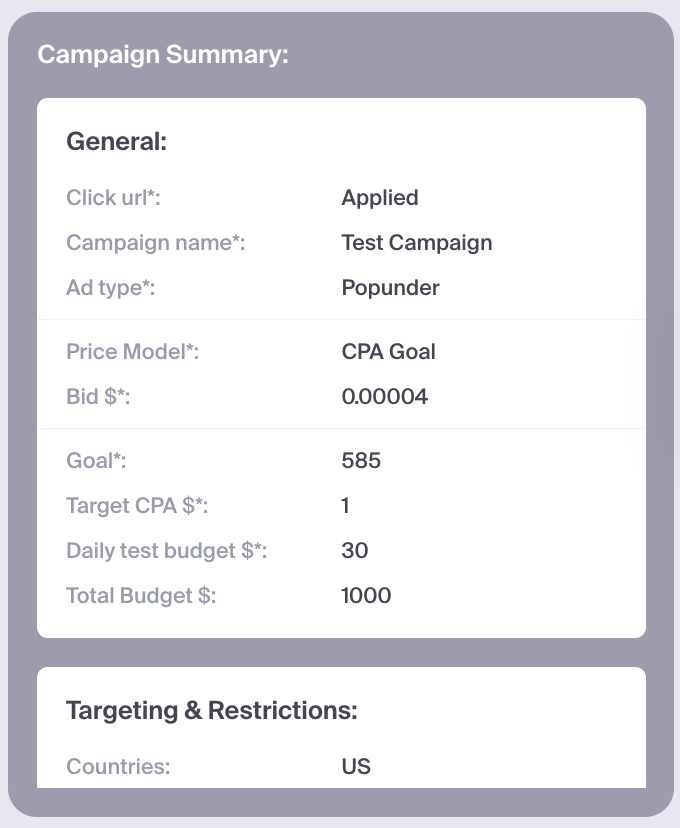
- Click Create (or Update).
- Your campaign will enter the Moderation queue. Monitor the campaign status and address any rejection reasons if they occur.
Continue later: if you leave the campaign setup before submitting it, follow the save message in the confirmation dialog. To reopen a saved draft, go to Campaigns → Drafts and select it. Review the restored settings before submitting the campaign. See Continue from a draft.
Common Launch Mistakes
- Over-Targeting: Setting too many restrictions (e.g., specific OS versions AND specific browsers) on a fresh launch can severely limit traffic volume. Start broad and refine based on data.
- Tracking Errors: Missing or incorrectly formatted macros in your Click URL will prevent conversion data from reaching your tracker or MyBid.
- Aggressive Capping: Setting a very low frequency cap (e.g., 1/24) before testing can prevent you from reaching the full potential of high-performing sources.
Troubleshooting
- Unable to Save: Check for red validation highlights in any of the configuration tabs. Ensure all mandatory fields (marked with an asterisk) are filled.
- Zero Traffic: If your campaign is "Active" but receiving no impressions, verify that your bid is competitive for the chosen GEO and that your targeting isn't too restrictive.
- Moderation Rejection: If your campaign is rejected, click on the status to view the specific reason. Common issues include non-compliant creatives or broken landing pages. Fix the highlighted issues and resubmit.