
Test conversion: How to Check Conversion Tracking
Use Test conversion to check your conversion tracking after setup and before launching a campaign. Generate a test link from your Click URL, open it, and complete the action you want to track. Then check whether MyBid received the conversion and whether its goal and value match your expectations.
Before You Start
Prepare the Click URL you intend to use in your campaign, such as your tracker's campaign link. Configure conversion reporting to MyBid in your tracker or other system. If you use a named Conversion Goal, create it and configure its goal_id in the postback. See Conversion Goal and the setup guide for your tracker.
The Click URL must contain {%click_id%} in a query parameter, after ? or &. For example:
https://tracker.example/campaign?click_id={%click_id%}Which URL Goes Where?
| URL | Purpose |
|---|---|
| Click URL | Your campaign's destination or tracker link. Paste this into the test form. |
| Test URL | The link MyBid generates for the test. Open this link to perform the conversion. |
| Postback URL | The address your tracker or other system uses to report a conversion to MyBid. Configure this in your tracking setup. |
How to Run a Test
- Open Goals → Test conversion.
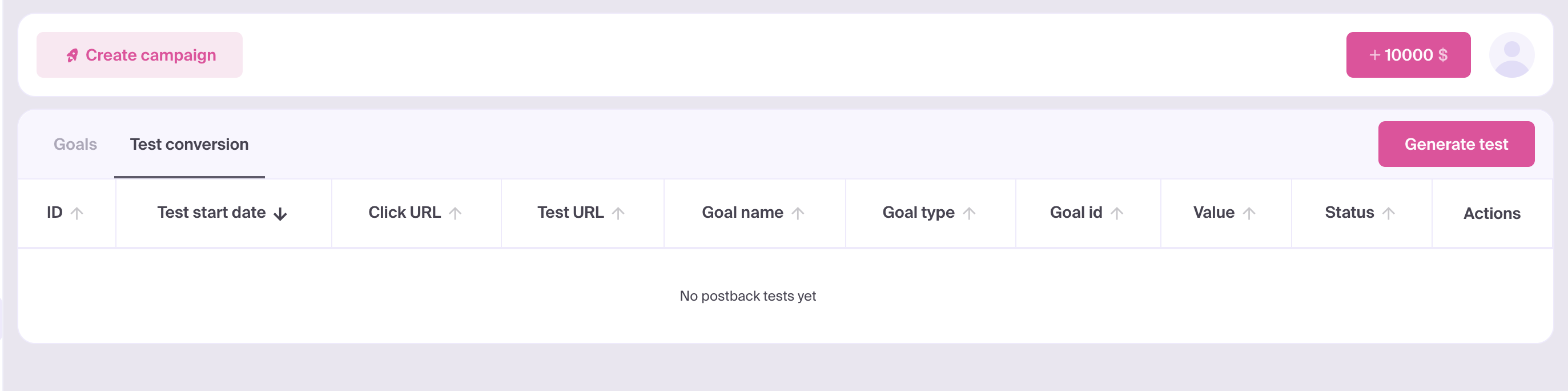
- Click Generate test.
- Paste your link into Click URL, including
{%click_id%}in the query parameters.
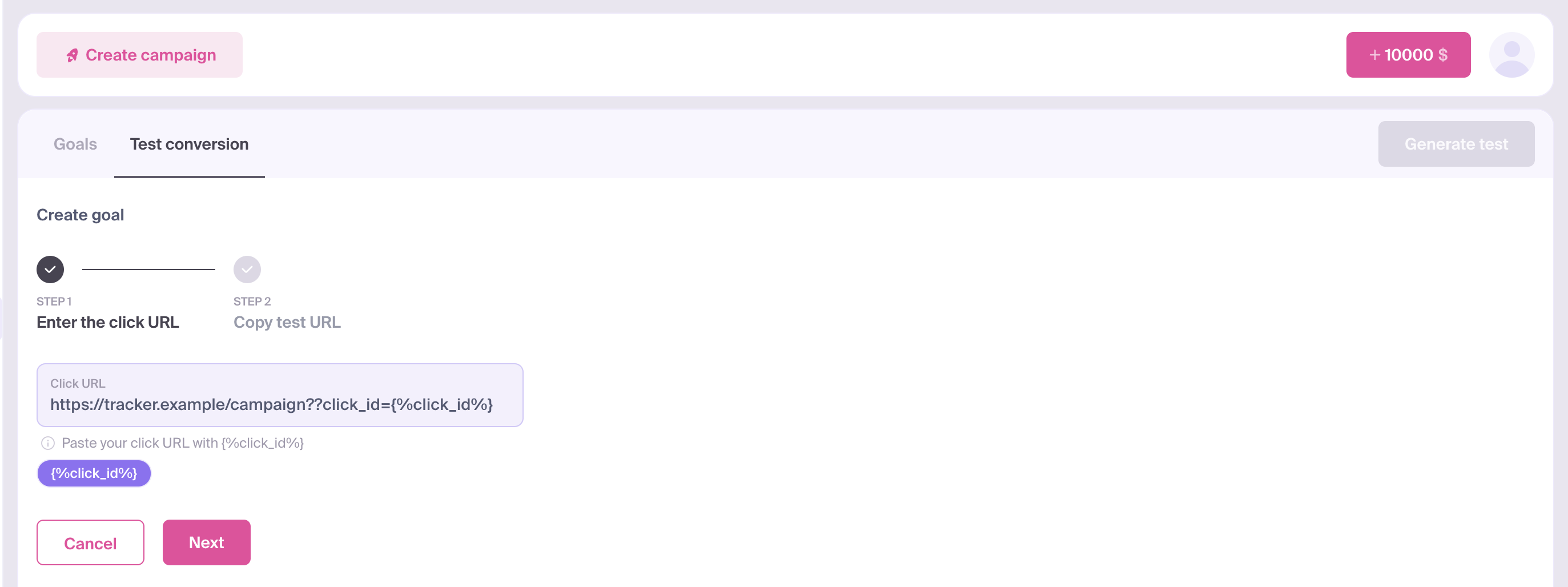
- Click Next. MyBid generates a Test URL.
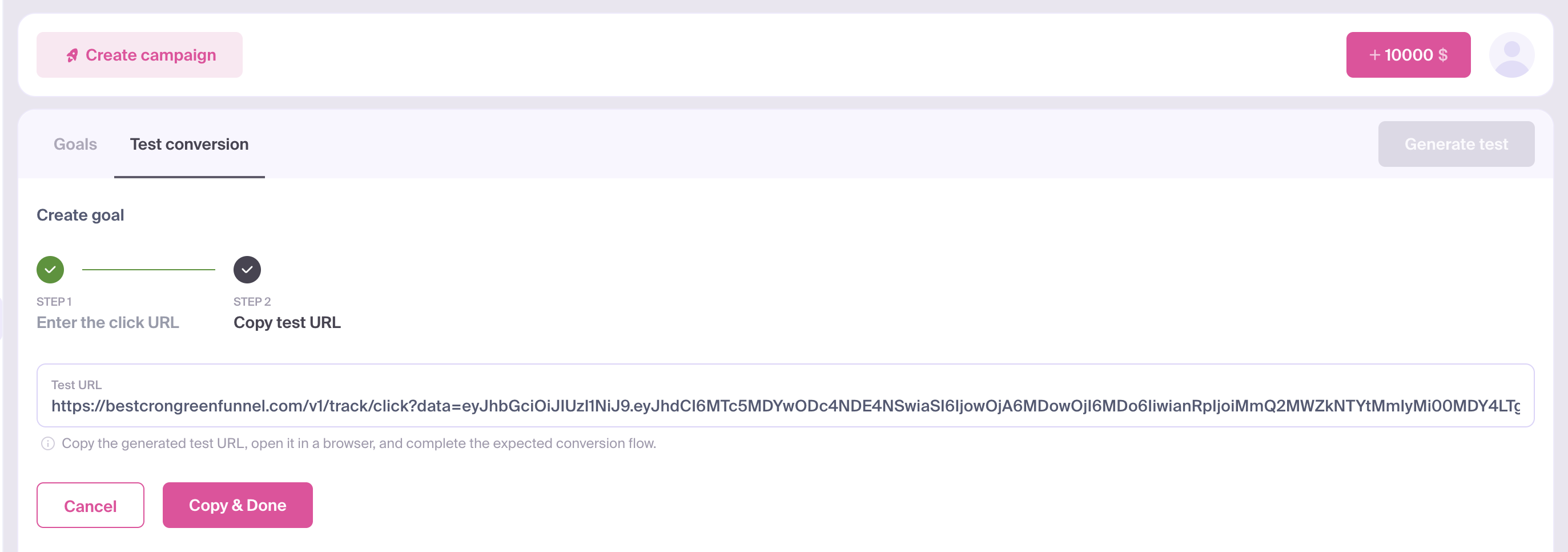
- Click Copy & Done to copy the Test URL and close the form.
- Open the copied Test URL in a browser and complete the expected conversion flow, such as a registration or purchase.
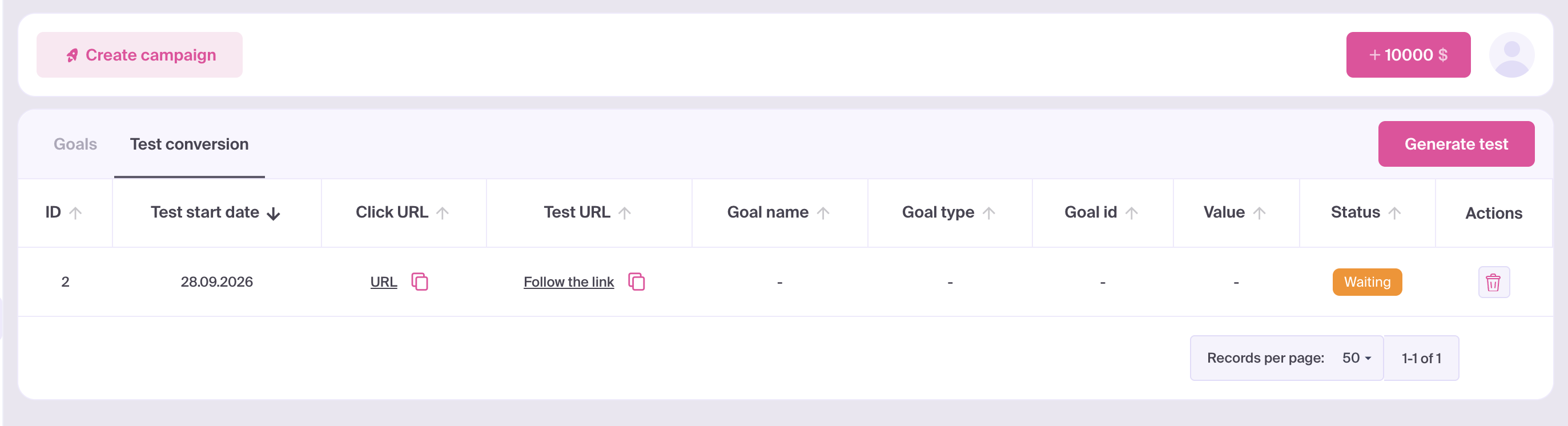
- Return to Test conversion and reload the page to load the latest result.
How to Read the Result
Find your test in the table using its ID, Test start date, or Click URL. The newest tests appear first by default.
| Status | Meaning | What to Check |
|---|---|---|
| Waiting | The test is waiting for a conversion. | Complete the expected action, refresh the results, and check your tracking setup if the status remains unchanged. |
| OK | MyBid received a conversion for the test. | Check Goal name, Goal type, Goal id, and Value against the action and value you expected. |
OK confirms a received conversion for the flow you tested. If you track several actions, check the result for each expected goal. A test can have several rows with the same ID when different goals are received.
A dash (-) in a goal field means that no named goal, type, or ID is available to display. A dash in Value means there is no value to display; a numeric 0 is displayed as 0. A dash alone does not indicate a failed test.
If the Test Remains Waiting
Check the following:
- You opened the generated Test URL and completed the expected action through that link.
- You refreshed the table after completing the action.
- The Click URL contains
{%click_id%}under the parameter name your tracker expects, and the tracker saves the click ID. - Your tracker or other system sends the conversion postback to MyBid using the click ID from the test. If you use a named goal, check its
goal_idas well. - If an affiliate network reports conversions to your tracker, that part of the integration is configured and the tracker receives the event.
If the status is OK but the goal or value is unexpected, check the goal mapping and value settings in your tracking setup. Use the integration guide for your tracker and Conversion Goal to review the configuration.
Reopen, Copy, or Delete a Test
In the Test URL column, click Follow the link to open the test link again, or use the copy icon to copy it. The Click URL column also lets you open or copy the original link.
To delete a test, click the delete icon in Actions and confirm. This permanently removes the test and all its goal rows from the test list.