
Advertising Formats and Creative Requirements
MyBid supports Push, Inpage, Popunder, Banner, Native, and Video on desktop and mobile web. Banner, Inpage, and Video are also available for Telegram Mini Apps.
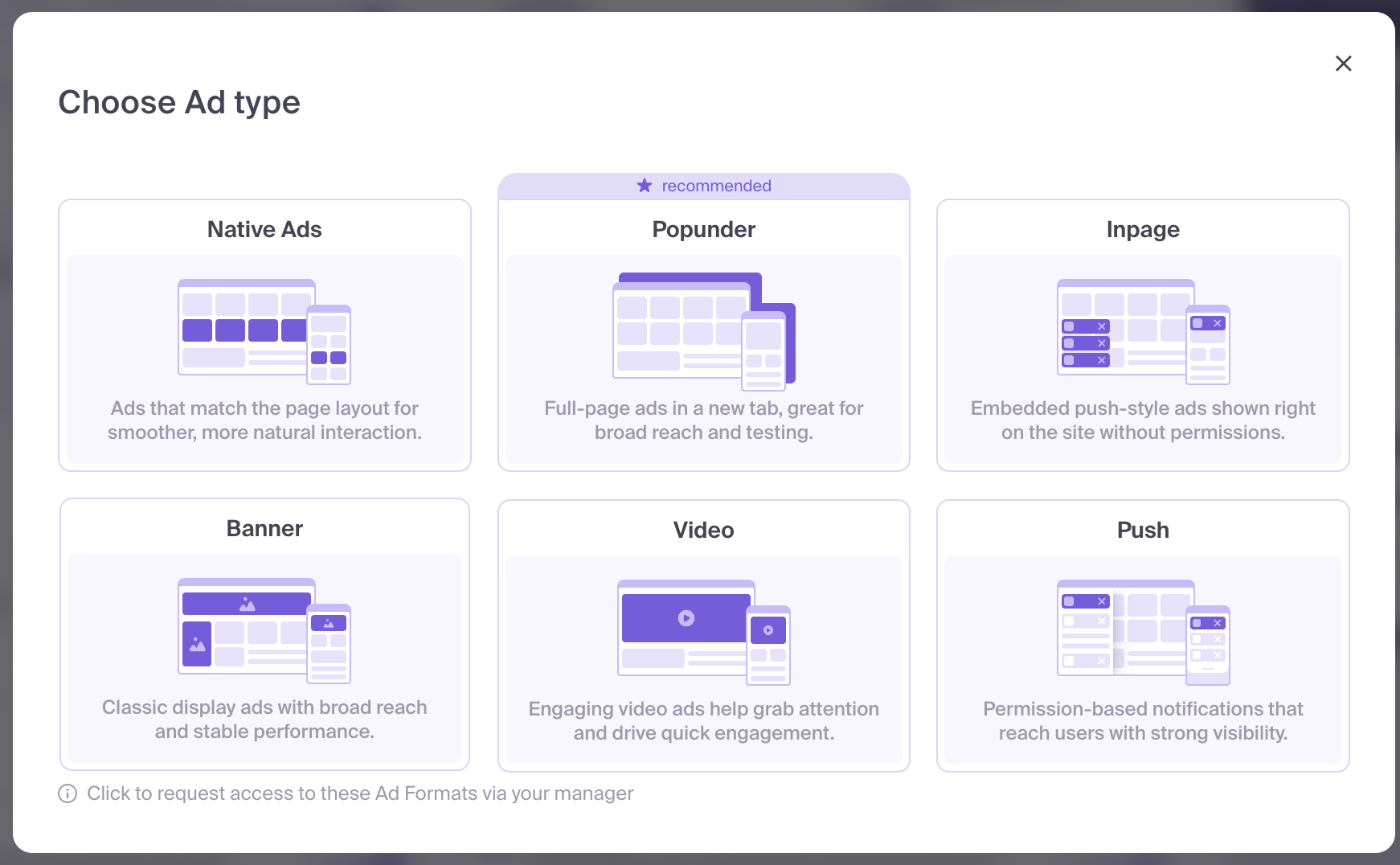
Three settings have different purposes:
- Ad type determines how the advertisement is presented to the user.
- Creative contains the text, images, or video used in the advertisement.
- Pricing model determines how traffic is charged and how bidding is managed. Available models depend on the format and campaign settings; see Pricing Models.
Compare the Formats
| Format | How it appears | Creative fields to prepare |
|---|---|---|
| Push | A notification delivered to a user who has subscribed to notifications | Title, Description, Image, Icon; optional button text and Badge |
| Inpage | An advertisement on a website page, often with notification-style presentation | Title, Description, Image, Icon; optional skins and preview |
| Popunder | The destination page opens in a new browser tab or window | Click URL |
| Banner | A graphical advertisement in a display placement | Image matching Banner size, or an iFrame src link |
| Native | An advertisement presented within the surrounding page layout | Title and Image |
| Video | Video playback in an advertising placement | An uploaded video, a direct video link, or a VAST document link |
Image and Icon are optional when creating a creative, but we recommend adding them where the format supports them to improve clickability. The table lists available fields, not a requirement to fill every field. Title is required for Push, Inpage, and Native; Description is optional. Popunder uses the destination URL without a separate visual creative.
Push
Push delivers an advertising notification to a user who has subscribed to notifications. A notification can include a title, description, icon, and a larger image. Its appearance and the visible elements depend on the device and notification environment.
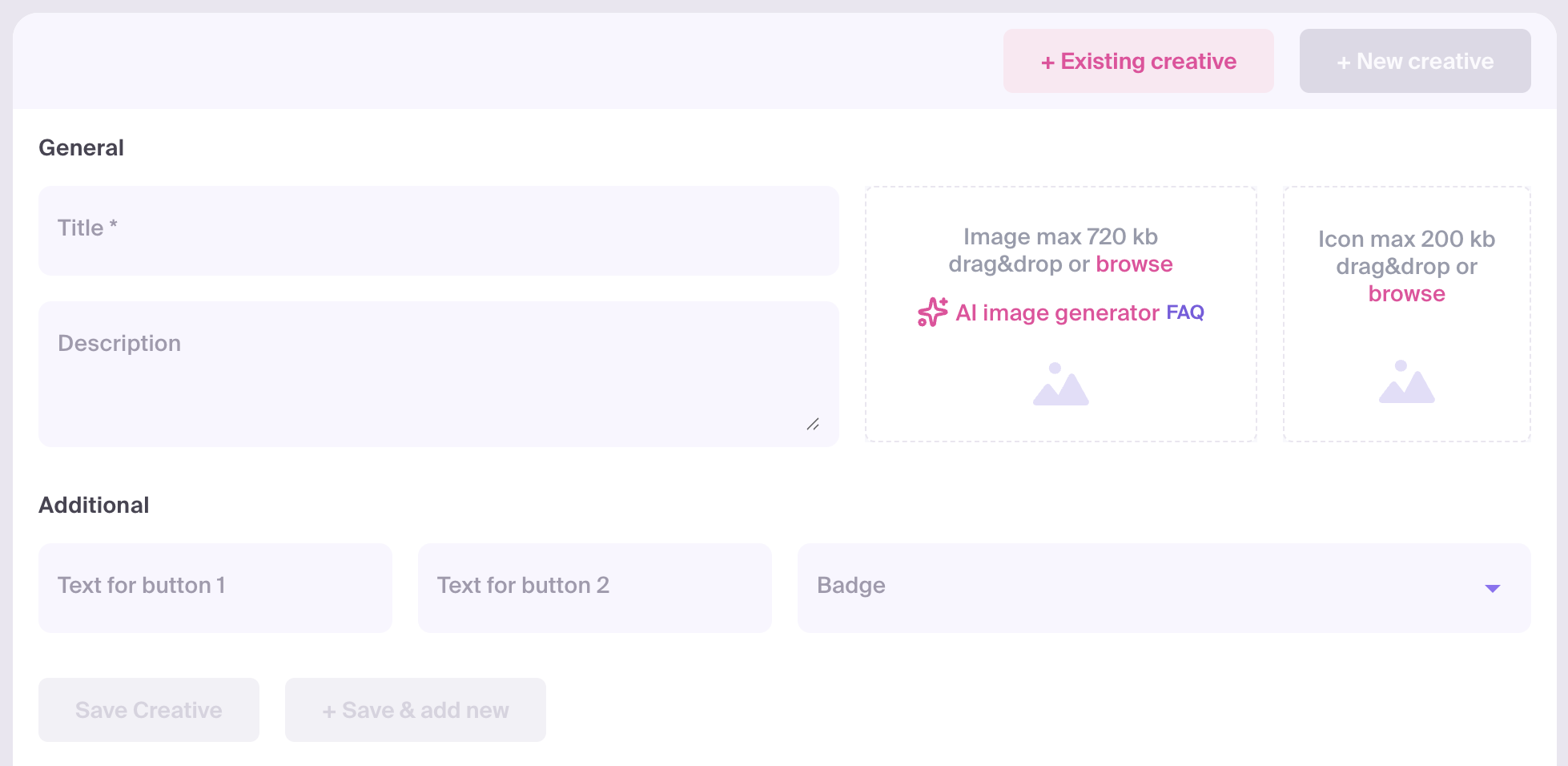
In the creative form, prepare:
- Title: a short, clear message about the offer.
- Description: supporting information, if useful.
- Image: recommended resolution 1024×512 px.
- Icon: recommended resolution 192×192 px.
The Additional block also offers Text for button 1, Text for button 2, and Badge. Each button text can contain up to 64 characters. These fields are optional; the presence of a field in the form does not guarantee that every device displays that element.
Use a recognizable icon and a clear main image. Keep the most important message at the beginning of the title so that it is understandable even when the available display space is limited.
Inpage
Inpage displays an advertisement directly on a website page. It can resemble a notification, but the user does not need to subscribe to browser notifications to see it.
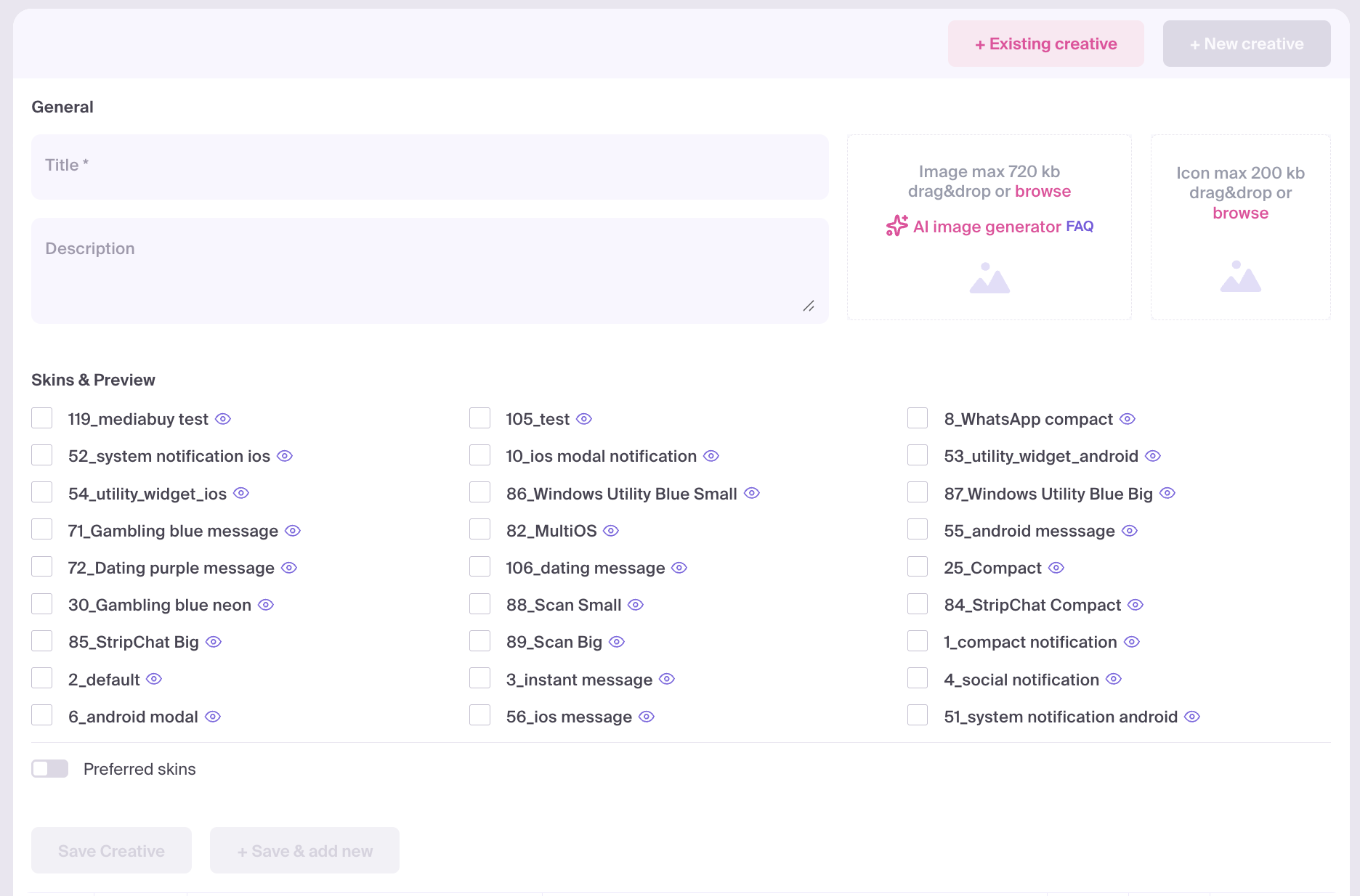
The form offers Title, Description, Image, and Icon. Recommended resolutions are 360×240 px for Image and 192×192 px for Icon. MyBid resizes uploaded images for this format.
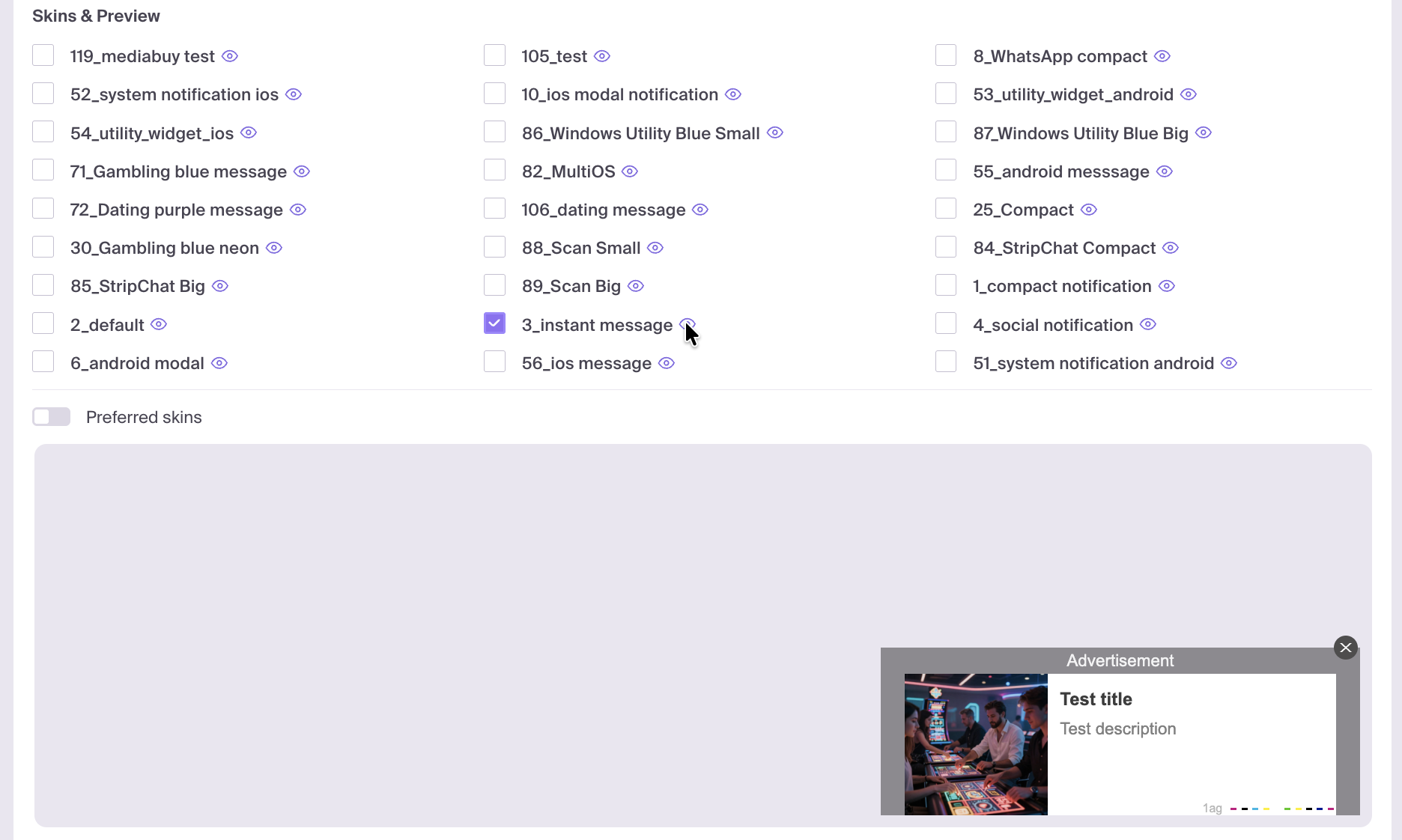
Inpage also includes Skins & Preview. A skin defines how your text and images are arranged and presented. You can preview different skins, select preferred ones, or let the platform choose automatically. See Skins and Preview.
Popunder
Popunder opens the page specified in Click URL in a new browser tab or window, typically behind the active page. The landing page itself is the advertising destination.
A URL is enough for Popunder. You do not need to upload Image or Icon, write a creative Title or Description, or create a separate visual creative. Use the URL of your landing page or tracking link and check that it leads to the intended offer.
Enter Click URL where it appears in your campaign form. Depending on the version of the form, it can be in General or Creatives. Some Popunder forms do not have a Creatives tab.
What Is Charged in Popunder?
Popunder is charged on a CPC basis when the landing URL opens. An additional click on the already opened landing page is not required for the charge.
For example, if the landing page opens and the visitor leaves without pressing a button on it, the opening is still the billable event. A purchase, registration, or another action on that page is a separate conversion event.
For this format, focus on the destination: a working URL, a clear offer, a page that loads promptly, and correct conversion tracking. If you use a tracker, check the campaign URL using Test conversion: How to Check Conversion Tracking.
Banner
Banner presents a graphical advertisement in a placement on a website or in a Telegram Mini App. Choose Banner size in General, then prepare the creative for that size.
The available sizes include 300×100 px and 300×250 px. Use the options shown in Banner size for your campaign. MyBid does not automatically resize Banner images, so prepare the artwork at the chosen dimensions: a 300×250 image is not a substitute for a 300×100 image.
The graphical Banner form uses Image. It does not provide separate Title and Description fields; include any advertising copy in the artwork and keep it readable at the actual display size.
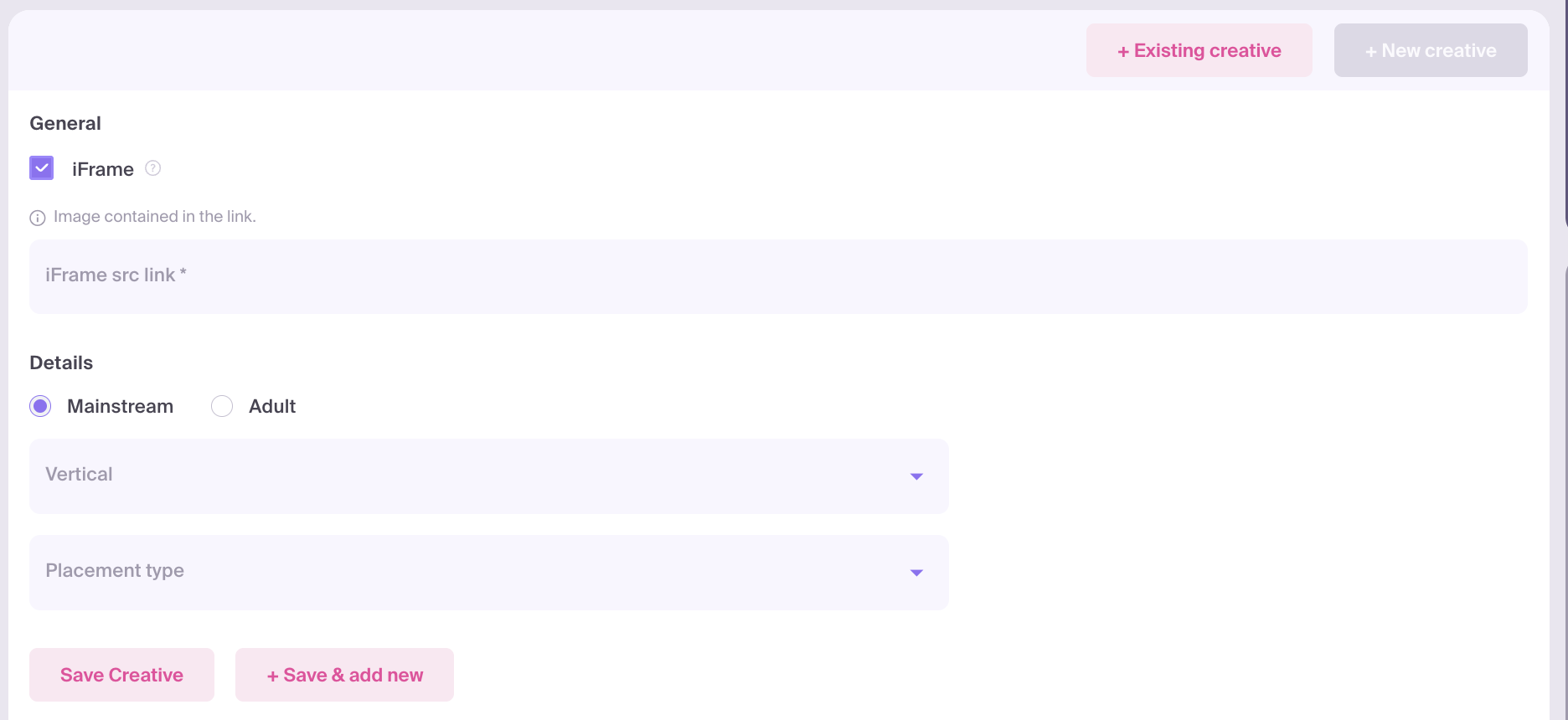
Banner with an iFrame Link
The iFrame option lets you use an iFrame src link instead of uploading an image. Enable the option and enter the address of the content to display inside the placement.
The iFrame src link supplies the creative content. Click URL specifies the traffic destination. Prepare the linked content for the selected Banner size and check its appearance before submitting the campaign.
Native
Native presents an advertisement within the surrounding page layout. In the creative form, use Title and, preferably, Image. The advertiser form does not include separate Icon or Description fields for this format.
Native images are not automatically resized. Prepare suitable artwork before uploading it and keep the title concise. A clean image with one clear subject is easier to recognize in a small placement than an image containing many details or small embedded text.
Video
Video uses a video asset or a VAST document to deliver an advertisement. In General → Creative type, choose how you will add the video:
- Video upload: upload a file to MyBid.
- Video link: provide a direct link to the video hosted elsewhere.
- Vast document link: provide a link to a VAST document containing the video advertisement information.
Choose the type before adding creatives. Once the campaign contains Video creatives, the type selector is locked; creatives in the same campaign use the same method.
Requirements for a File Uploaded to MyBid
- Format: MP4.
- Maximum original upload size: 50 MB.
- Duration: no duration requirement.
- Aspect ratio: no aspect ratio requirement.
Choose a duration and composition that communicate your offer clearly. Keep important details readable, including when the video is shown in a smaller placement.
Video Size and Automatic Compression
Videos larger than 14 MB are compressed during upload. The upload is rejected if:
- compression fails;
- the processed file is still larger than 14 MB;
- the processed file is not smaller than the original file.
50 MB is the limit for the original upload; 14 MB is the compression threshold. A file below 50 MB can therefore still be rejected if automatic processing does not produce an acceptable result.
Smaller video files generally load faster under the same network conditions. Prepare a compact MP4 with sufficient visual quality. If automatic compression fails, reduce the file size yourself and upload it again. A file at or below 14 MB does not need the compression triggered by that threshold.
These upload and compression limits apply to files uploaded to MyBid. They should not be treated as the upload limits of an external host used for Video link or Vast document link.
Destination URL and Video Placement
For Video upload and Video link, set the destination in the campaign's Click URL. For Vast document link, the destination is contained in the VAST document, so the separate Click URL field is hidden. Check the destination in the document before using it.
Depending on the pricing model and campaign settings, Placement type may offer Instream, Outstream, or Slider. These describe where the video appears, not its required proportions:
- Instream: within a video player.
- Outstream: outside the main video content, in a page placement.
- Slider: in a sliding or floating video placement.
Use the placement options available in your form. An impression or opening does not by itself mean that a user watched the entire video.
Creative File and Text Requirements
File Types and Upload Limits
| Asset | Accepted file types | Maximum file size |
|---|---|---|
| Image | JPG, JPEG, PNG, GIF, WebP | 720 KB |
| Icon | JPG, JPEG, PNG, GIF, WebP | 200 KB |
| Video uploaded to MyBid | MP4 | 50 MB before automatic processing |
File size in KB/MB and resolution in pixels are different requirements. A high-resolution image still needs to fit within the upload size limit. Automatic resizing does not remove the original upload limit.
Recommended Image Resolutions
| Format | Image | Icon | Automatic resizing |
|---|---|---|---|
| Push | 1024×512 px | 192×192 px | Yes |
| Inpage | 360×240 px | 192×192 px | Yes |
| Banner | Match Banner size: 300×100 or 300×250 px, as selected | No Icon field | No |
| Native | Prepare suitable artwork before upload | No Icon field | No |
| Popunder | No image asset used | No icon asset used | Not applicable |
Push and Inpage resolutions are recommendations; MyBid resizes uploaded images for these formats. Start with clear artwork and use the recommended proportions to help preserve a readable composition. Resizing does not make small text or a blurred source image easier to read.
For Banner, match the selected size exactly. For Native, prepare the image yourself because it is not resized automatically.
Text Fields and Readability
| Field | Formats | Length and requirement |
|---|---|---|
| Title | Push, Inpage, Native | Required; no length limit |
| Description | Push, Inpage | Optional; no length limit |
| Text for button 1 / 2 | Push | Optional; up to 64 characters per button |
No length limit does not mean that all text will fit into the advertisement. Visible space depends on the skin, placement, device, and display environment. Write short, readable titles and descriptions, put the important message first, and avoid repeating the same information in both fields.
Check the available preview while creating the creative. For Inpage, open a skin preview in Skins & Preview to see how the text and images look together. If text does not fit, shorten it and check again. The preview helps assess the layout; the final presentation can vary by placement and device.
For example, “Save 20% on wireless earbuds” is easier to scan than a long sentence that delays the actual offer until the end. Use specific copy that matches your landing page and is appropriate for the target GEO.
Add and Check a Creative
- Start a campaign and select Ad type.
- Complete General. For Banner, choose Banner size; for Video, choose Creative type.
- Open Creatives.
- Enter the destination in Click URL.
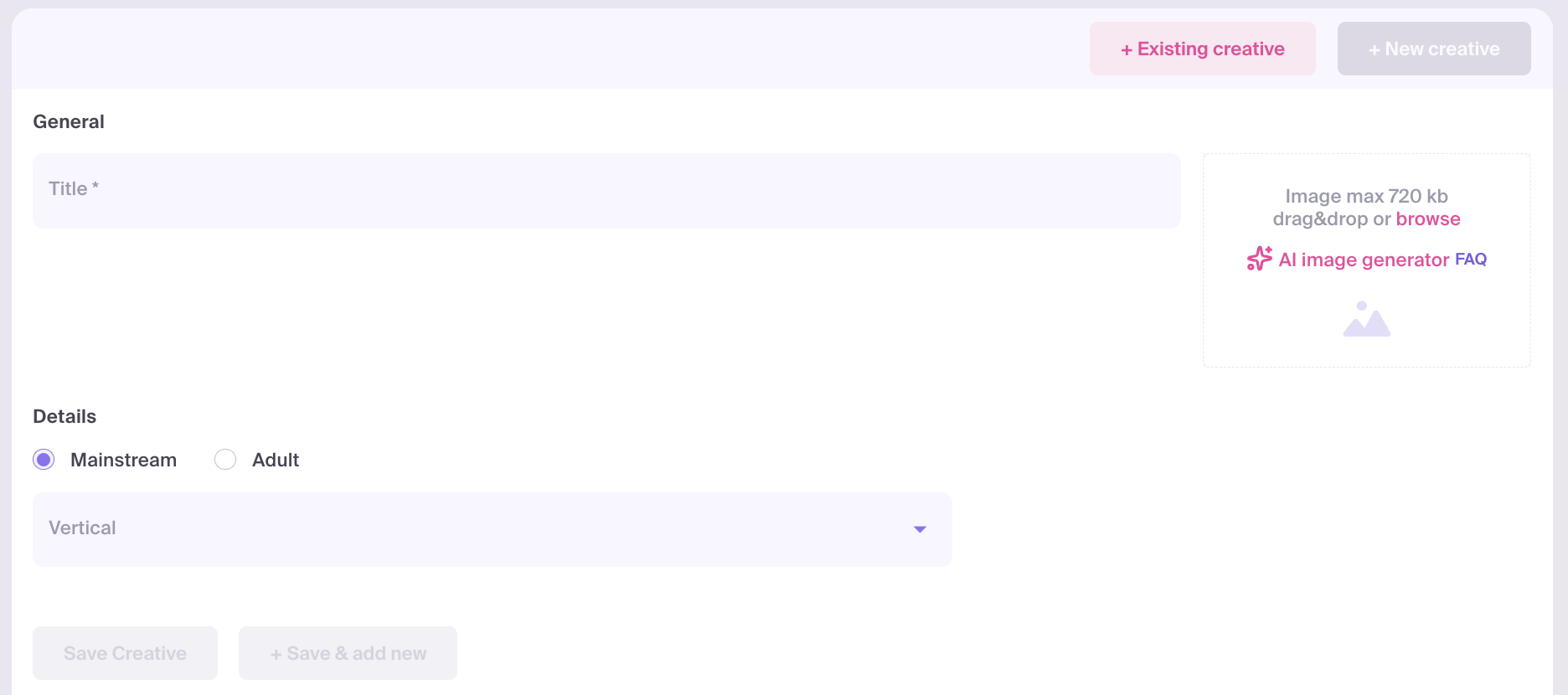
- For a visual or Video format, click + New creative and fill the fields available for that format. Add Image and Icon where supported to help improve clickability.
- Check the text and materials in the available preview. For Inpage, use Skins & Preview.
- Click Save Creative, or Save & add new to prepare another variation.
- Review Summary and click Create or Update to submit the campaign.
For Popunder, enter Click URL and continue without creating a separate creative.
Choose the format before preparing materials: changing Ad type during campaign creation resets the added creatives. The Ad type of an existing campaign is locked in the editing form.
Campaigns are reviewed through moderation after submission. A successful file upload or a saved creative does not mean that the campaign has been approved. See Campaign Launch Checklist and Campaign Statuses and Moderation Outcomes.
Skins and Preview
Skins are optional presentation templates for Inpage. They arrange your text and images in different ways. A skin does not generate or replace your own Image and Icon; those assets remain recommended for clickability even when you use a skin.
To choose a skin:
- Open the Inpage creative's Skins & Preview block.
- Click the eye icon beside a skin to preview it with your current text and materials.
- Select one or more skins if you want to guide the presentation.
- Choose the mode that matches your intent.
- Preferred skins: the advertisement is more likely to appear in the selected skins, but the selection is not exclusive.
- Mandatory skins: the advertisement will appear only in the selected skins.
You can leave the selection empty for automatic selection. Mandatory skins restrict the allowed presentation options; they do not guarantee more impressions. Check how your title, description, image, and icon look in the skins you select.
Generate an Image with AI
If AI image generator is available in the Image upload area, you can create an image directly in the cabinet:
- Open Creatives → + New creative.
- Click AI image generator in the Image area.
- Enter a Prompt of up to 500 characters. Optionally choose Style, Emotion, Focus, and Lighting.
- Click Generate and review the result.
- Click Use to add the result to Image.
- Complete the other creative fields and save the creative.
The generator creates Image only. It does not generate an icon, the entire creative, a video, or your landing page. It is available for supported campaign setups; if the button is absent, you can upload an image manually.
AI-generated images go through the same campaign moderation process as uploaded artwork. Review the result for accuracy and consistency with the offer. See AI Image Generator for prompt examples and troubleshooting.
Reuse a Creative Across Campaigns and GEOs
You can use the same creative materials in different campaigns and GEOs. You can upload the artwork again or select a compatible creative through + Existing creative:
- Set the new campaign's format and settings.
- Open Creatives → + Existing creative.
- Select the creative or creatives to add.
- Click Add.
- Check the destination URL, text, and campaign targeting before submission.
The list shows compatible creatives from your account based on the ad format, campaign category, traffic category, and, for Video, creative type. Changing GEO does not by itself require a new image. If a creative is missing from the list, check that the campaign setup is compatible.
The selection window shows clicks, impressions, conversions, and spend for the last month. Use those results as context, not as a promise of the same performance in another campaign.
Before reusing a creative in another GEO, check:
- the language of the advertisement and landing page;
- the availability and terms of the offer in that country;
- prices, currency, and any location-specific text in the artwork;
- the destination and tracking parameters for the new campaign.
If the message needs adaptation, prepare a separate variation. Editing the text or materials of a reused creative creates a new version for the campaign. Evaluate results for each GEO separately: a strong creative in one audience can perform differently in another.
To test another format alongside the main campaign, use the supported combinations in Multiformat. Adding another format creates an additional campaign, whereas adding another creative provides another variation inside a campaign.
Creative Count, CTR, and Impression Volume
Adding more creatives does not automatically increase impressions. It gives you more variations to test and can help you find an advertisement that attracts more clicks.
For traffic paid for by clicks, clickability contributes to how competitive a creative can be in the auction. A stronger creative can improve the likelihood of winning impressions at the same bid. This is not a fixed multiplier: total delivery also depends on competition, bid, GEO, targeting, budget limits, frequency caps, and available traffic. The same explanation should not be treated as a guarantee for every pricing model.
Smart Creative Delivery
The Smart Creative Delivery toggle controls how traffic is distributed among the campaign's creatives:
- Enabled: the campaign favors creatives that generate more clicks.
- Disabled: traffic is split equally for manual creative testing.
The feature redistributes traffic among creatives; it does not guarantee that adding more variations creates more available traffic.
Test meaningful differences in the message, image, or presentation. Repeating an identical creative gives you little new information about what works. Compare CTR as well as conversions and the cost of the result: a highly clickable advertisement can still attract visitors who do not convert.
For Popunder, test the landing page or destination URL rather than visual creative assets. To estimate available traffic and choose a segment, see Traffic Chart: How to Find Launchable Segments.
Troubleshooting and Final Checklist
| Issue | What to check |
|---|---|
| Image or Icon upload is rejected | Use JPG/JPEG, PNG, GIF, or WebP and stay within 720 KB for Image or 200 KB for Icon |
| Video upload fails | Use MP4 within 50 MB; if processing of a file over 14 MB fails, reduce its size yourself and upload again |
| Banner artwork does not match the placement | Compare the artwork dimensions with the selected Banner size; images are not resized automatically |
| Save Creative is unavailable or a text error appears | Fill Title where required and resolve the field's error; check the 64-character limit for Push button text |
| Text does not fit in the advertisement | Shorten it, move the important message to the beginning, and check the available preview |
| A Video link is rejected | Check that it is a valid URL and that you selected the intended Creative type |
| A temporary upload limit appears | Follow the message; an upload-limit notification asks you to wait 30 minutes. Contact your manager if needed |
| AI image generator is missing | It is not available for the selected setup; use manual image upload |
An upload error does not always identify only a file-size problem. If a supported file within the limits repeatedly fails, contact your MyBid manager or support with the error message and file details.
Before submission, confirm that:
- the selected format matches the material you prepared;
- uploaded files meet the relevant type and size limits;
- Image and Icon are added where useful for clickability;
- titles and descriptions are short, readable, and checked in the available preview;
- the Banner artwork matches Banner size, or the iFrame link supplies the intended content;
- the Video creative type and destination are correct;
- the offer, language, and landing page match the target GEO;
- the destination URL and conversion tracking work as intended.
Frequently Asked Questions
1. What Do I Pay for in Popunder, and Is Another Click Required?
You pay on a CPC basis when the landing URL opens. The visitor does not need to click again on the opened landing page for that charge to occur. A later purchase or registration is a separate conversion event.
2. Does Popunder Need an Image and Text, or Is a URL Enough?
A Click URL is enough. Popunder does not require a separate Image, Icon, Title, or Description creative.
3. Which Image Sizes, File Types, and Text Limits Apply?
Image accepts JPG/JPEG, PNG, GIF, and WebP up to 720 KB; Icon accepts the same types up to 200 KB. Recommended sizes are 1024×512/192×192 px for Push and 360×240/192×192 px for Inpage. Banner uses the selected 300×100 or 300×250 size without automatic resizing; Native is also not automatically resized. Title and Description have no length limit, but short text is recommended because the full text may not fit. Push button text is limited to 64 characters per button. See Creative File and Text Requirements.
4. What Are the Video Requirements for Duration, Size, Format, and Proportions?
For a file uploaded to MyBid, use MP4 up to 50 MB. Files over 14 MB are compressed and can be rejected if processing fails or the result is still over 14 MB or is not smaller than the original. There are no duration or aspect ratio requirements. Smaller files generally load faster under the same conditions.
5. How Do I Choose a Skin, and Does It Replace My Images?
For Inpage, open Skins & Preview, preview a skin with the eye icon, and select it if desired. Preferred skins guide selection; Mandatory skins limit delivery to the selected skins. Selection is optional and can be automatic. A skin does not replace your own images; Image and Icon remain recommended for clickability.
6. Can I Generate an Image Automatically?
Yes, when AI image generator is available in the Image area. Describe the image, click Generate, then Use. The generator creates Image only; complete the remaining creative fields separately.
7. Can I Use the Same Creative in Different GEOs or Campaigns?
Yes. Reuse the materials or choose a compatible creative through Existing creative. Check the language, offer, prices, destination URL, and targeting for each campaign, and evaluate performance separately for each GEO.
8. Will More Creatives Increase Impression Volume?
They can help you find a more clickable variation and improve auction competitiveness for traffic paid for by clicks, but creative count alone does not guarantee more impressions. Smart Creative Delivery favors creatives that generate more clicks; switch it off to split traffic equally for manual testing.