
Overview of MyBid SSP (Self-Service Platform)
Our Self-Service Platform provides a comprehensive suite of tools to manage your advertising campaigns efficiently. With the SSP, you can:
- Create, stop, and copy campaigns.
- Add funds to your account.
- Analyze performance statistics by campaign, date, country, operating system (OS), source, spot, and creatives.
- Filter data by campaign, country, date range, ad type, OS, platform, and source.
- Review financial history from your registration date.
- Define conversion goals for accurate tracking.
- Monitor traffic volumes by ad type, pricing model, country, platform, and OS using the Traffic Chart.
- Contact our Support team and access guides in our Knowledge Base.
- Explore exclusive special offers.
- Generate API keys for programmatic integration.
- Access your referral link to join our referral program.
- Manage auto-optimization rules and view their performance statistics.
- Update your personal information.
Overview of SSP Sections
Campaigns
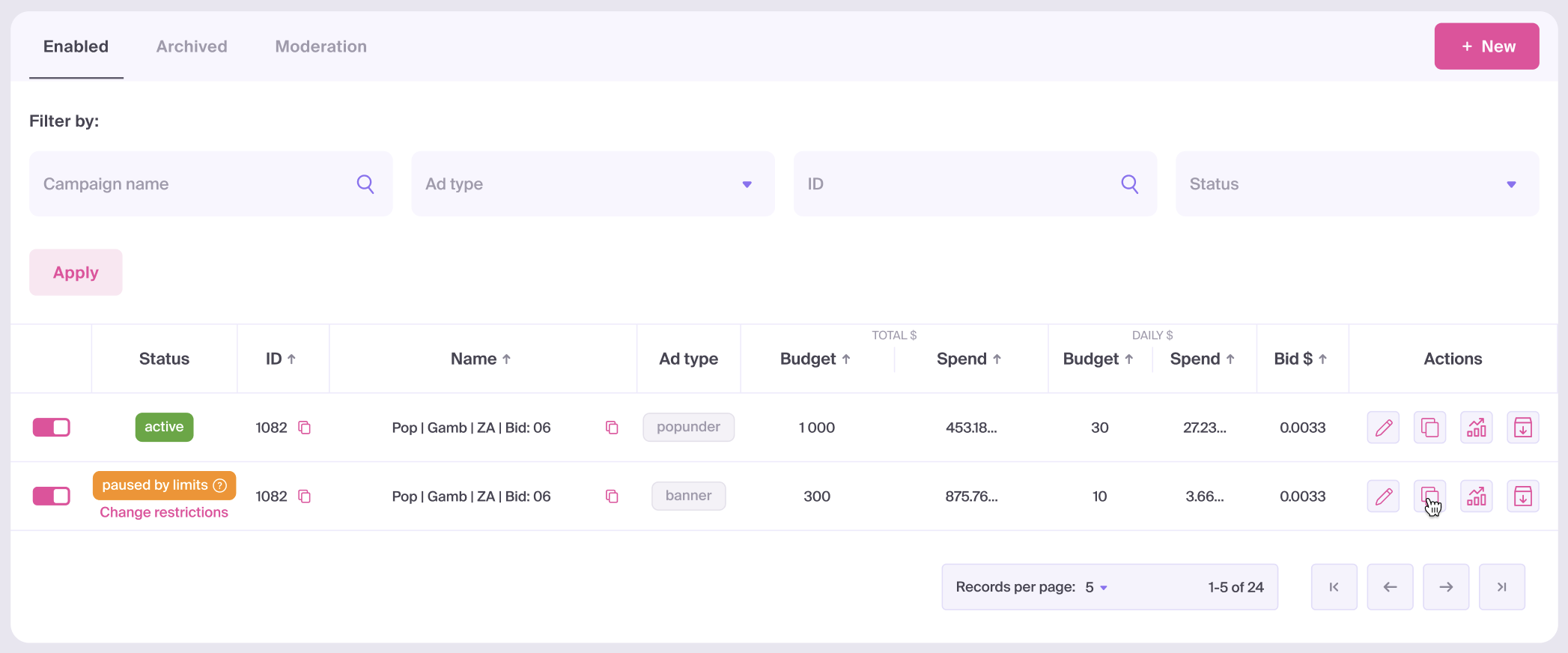
This section is your central hub for managing your campaigns. You can view the following data for each campaign:
- Status
- ID
- Name
- Ad type
- Total budget
- Total spend
- Daily budget
- Daily spend
- Bid
Filtering Options: You can filter your campaign list by campaign name, ad type, ID, or status.
Actions in the Campaigns Section:
- Create new campaigns.
- Edit and manage existing campaigns.
- Duplicate (copy) campaigns.
- Start or stop campaigns.
- Archive campaigns.
- Access detailed statistics for a specific campaign.
- Adjust total budget, daily budget, and bids.
- Change views between active, archived, or campaigns under moderation.
Moderation and Campaign Statuses
After creation, campaigns are sent for manual moderation and will appear in the Moderation tab. During this process, campaigns cannot be edited or canceled. Moderation typically takes between 20 minutes and several hours. Once reviewed, campaigns are either approved or rejected, and their status will be updated accordingly.
You can manually stop a campaign at any time, which will change its status to paused.
If a campaign reaches its daily limit, it will be paused with the notification paused by limits and will resume automatically at the start of the next day. If a campaign reaches its total budget limit, it will be paused permanently until the budget is increased.
Create Campaign
- Ad Formats: Campaigns can be launched with several ad formats on desktop and mobile web, including Push, Banner, Inpage, Popunder, Video, and Native. For Telegram Mini Apps, available formats include Banner, Inpage, and Video. Compare them and prepare your materials using Advertising Formats and Creative Requirements.
- Pricing Models: Supported models include CPM, SmartCPM, CPC, SmartCPC, and CPA GOAL. For more information on Pricing Models, see our guide on Pricing Models.
An estimated traffic volume is displayed at the top of the creation screen.

Available Targeting & Restrictions:
- GEO: Countries, Cities, and Regions.
- Platforms: Platform type, OS, and OS version.
- Browsers: Browser families, version, and language settings.
- Entry Source: Refers to the source from which the user arrived at the publisher’s website displaying the advertisement.
- Mobile Operator: Carrier-specific targeting.
- Usage Type: Connectivity type (e.g., Wi-Fi, Cellular).
- IP Ranges: Specific IP address targeting.
- Time Range: Day-parting and scheduling.
- Capping: Frequency and session capping.
- Black/White Lists: Source and spot filtering.
Traffic Chart
The Traffic Chart is a powerful dashboard that helps you identify the best traffic segments for your offer and budget. It provides approximate data based on the performance of the last 24 hours.
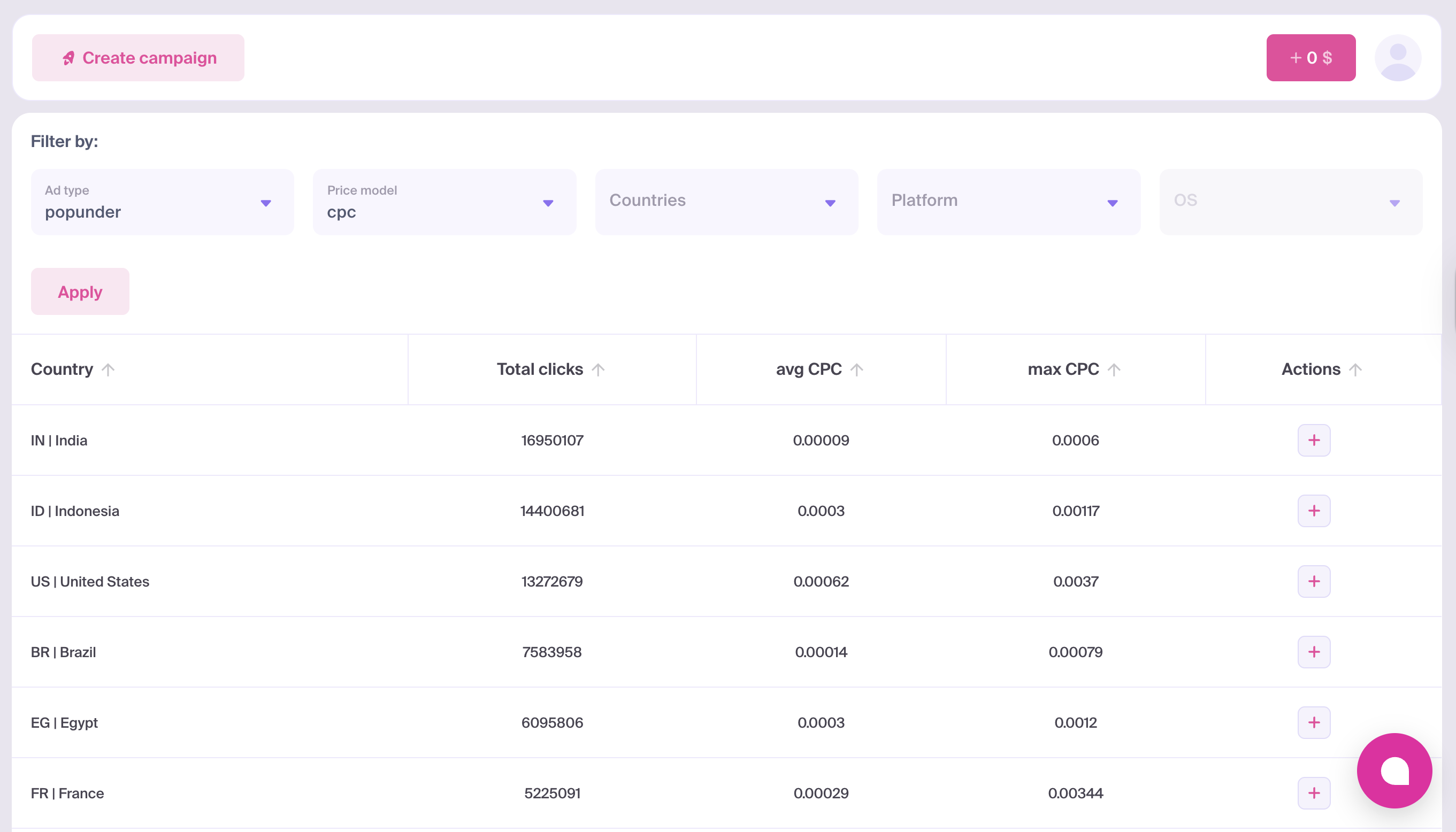
The Traffic Chart provides insights into:
- Traffic volume by GEO.
- Available click volumes.
- Maximum and average bid rates.
Filtering Options:
- Ad type (Inpage, Popunder, Push, Video)
- Pricing model
- Country
- Platform
- OS
By combining these filters, you can determine which GEOs are most suitable for your offer. You can also initiate a new campaign prepopulated with your selected filter parameters directly from this section.
Add Funds
To add funds to your account, click the pink button in the top-right corner of the interface. We support various payment methods, including debit and credit cards (Visa, MasterCard), Capitalist, SEPA, and cryptocurrencies (USDT/USDC).
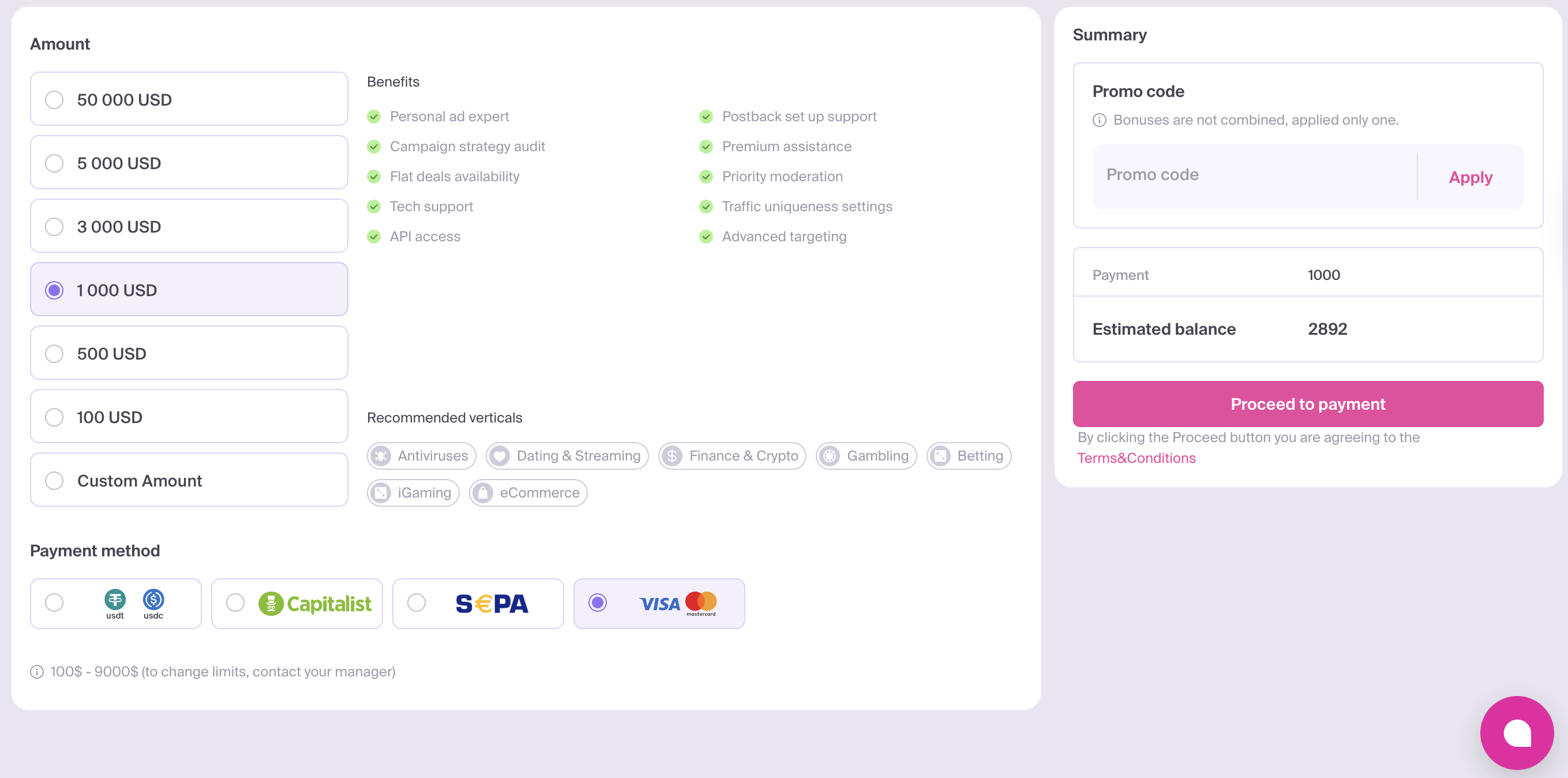
The minimum deposit for all payment methods is 100 USD.
For more detailed information, please refer to our Payment Methods article.
Transactions
The Transactions section provides a detailed history of your payments and their current statuses.
Goals
In the Goals section, you can create performance milestones to generate postback URLs with unique IDs.
For more information on setting up goals, see our guide on Conversion Goals.
Statistics
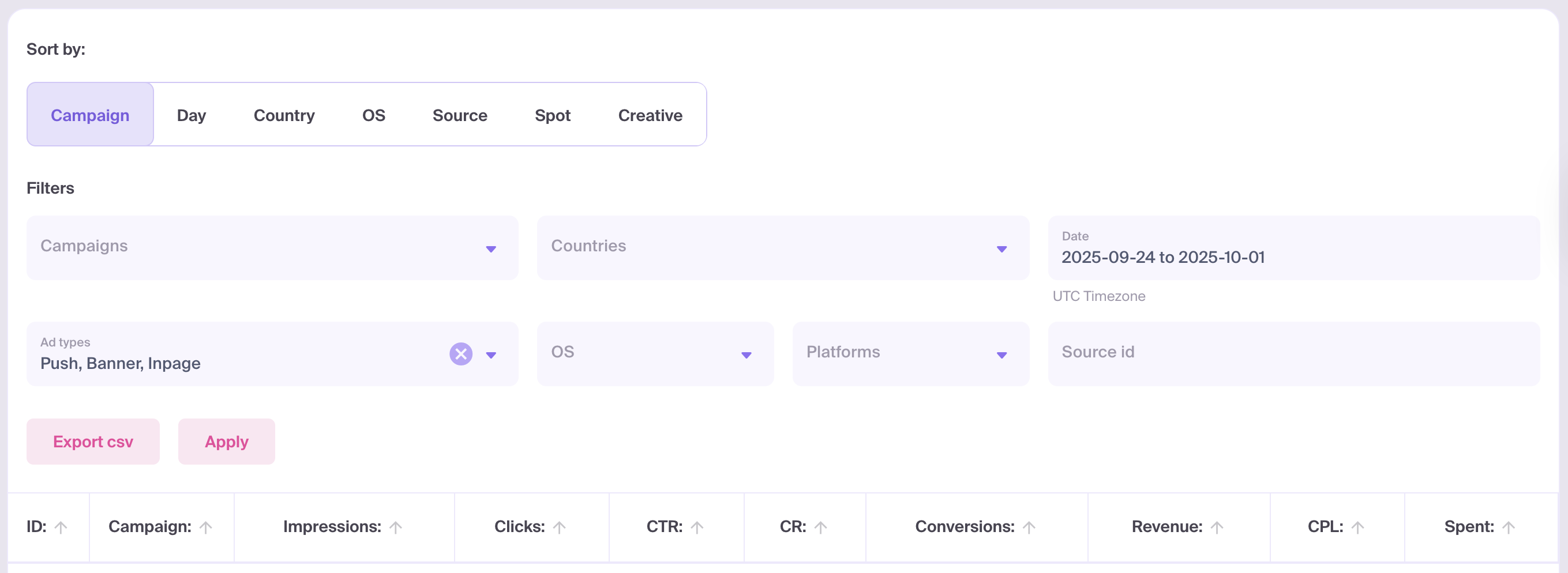
This section allows you to dive deep into your performance data, including:
- Impressions
- Clicks
- CTR (Click-Through Rate)
- CR (Conversion Rate)
- Total conversions
- Revenue
- eCPA (Effective Cost Per Action)
- Total spend
Grouping Options: Data can be grouped by Campaign, Day, Country, OS, Source, Spot, or Creative.
Filtering Options: Refine your data by campaigns, countries, date range, ad types, OS, platforms, or Source ID.
All statistics can be exported as a CSV file for offline analysis.
Optimizers
Here, you can create automated optimization rules and monitor their impact on your campaign performance.
For more information on setting up optimizers, see our guide on Optimizers.
API Keys
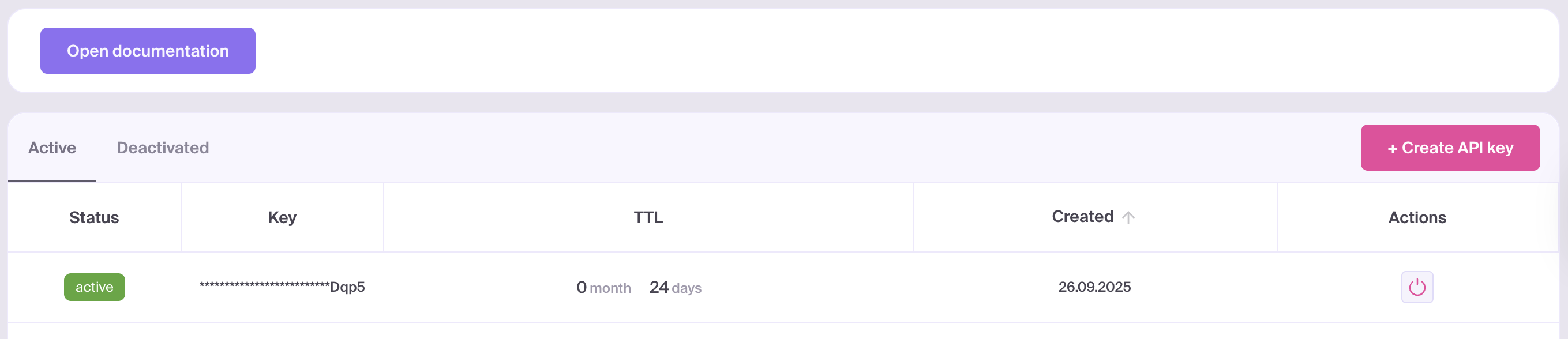
The API Keys section allows you to generate keys for programmatic access to our platform.
Our API documentation is available here.
Bonuses
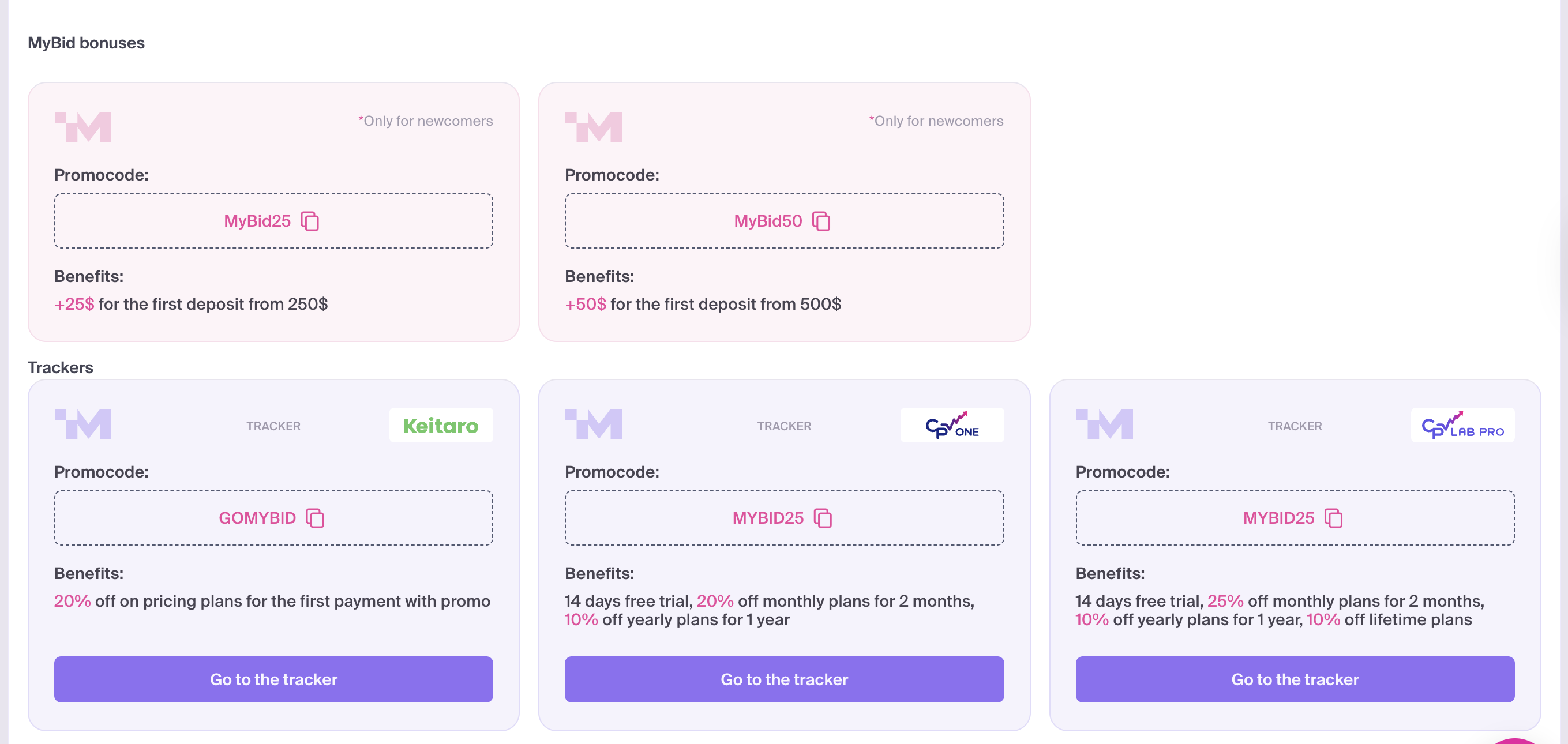
Stay updated on all active bonuses and special offers from MyBid and our partners on this page.
Referral program
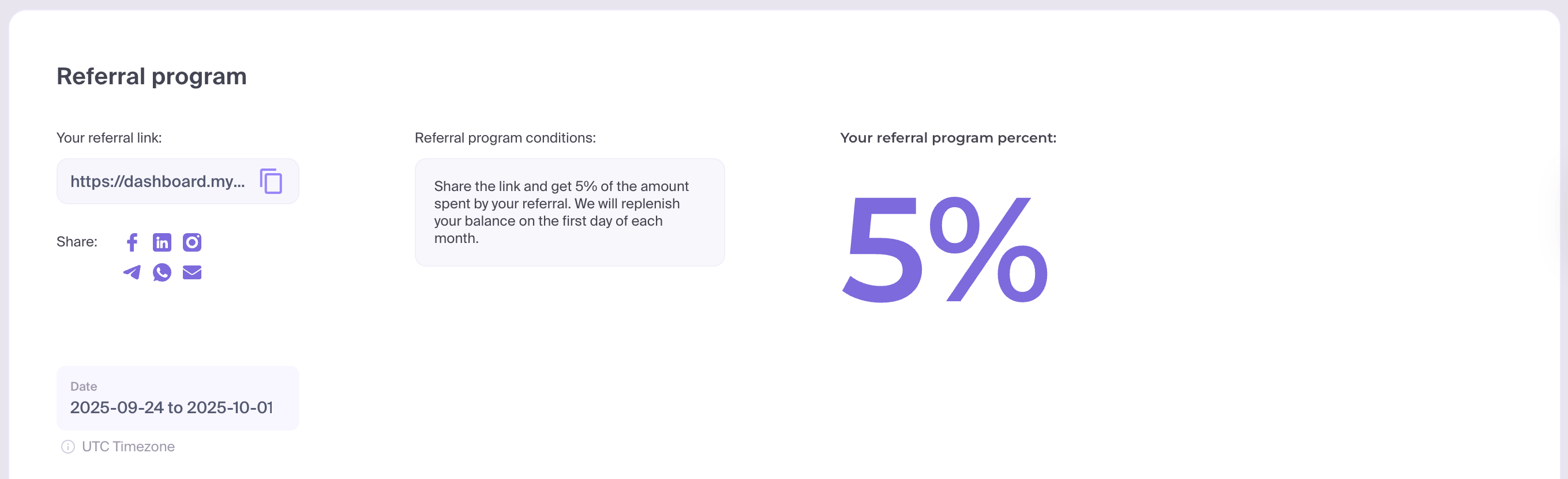
In this section, you can retrieve your personal referral link and join our referral program.
Share your link and earn 5% of the spend generated by your referrals. Earnings are credited to your balance on the first day of each month.