
AI Image Generator
The AI Image Generator helps you create an image while setting up a campaign creative. Describe the visual you need, optionally guide its style and mood, review the result, and add it directly to the creative.
It is especially useful when you want to test a new visual concept or create another creative variation without preparing every image from scratch.
The generator creates the Image asset only. Fill Title and Click URL where the format requires them. Description is optional; Image and Icon are optional when creating a creative, but recommended for clickability where supported. See Advertising Formats and Creative Requirements for fields, upload limits, and text guidance.
Where to Find the AI Image Generator
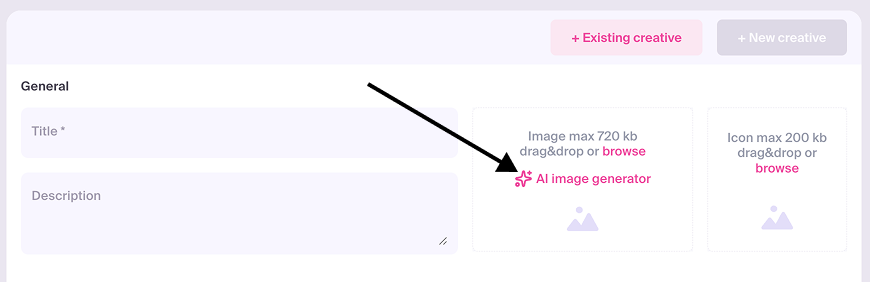
- Start creating a campaign.
- Open the Creatives step.
- Click + New Creative.
- Find the Image upload area.
- Click AI image generator.
IMPORTANT
We're gradually rolling out this feature. If you don't see it yet, please wait.
Generate an Image
- Enter a description in the Prompt field.
- Optionally select Style, Emotion, Focus, and Lighting.
- Click Generate.
- Review the generated image.
- Refine the prompt or settings and click Generate again if needed.
- Click Use when you are satisfied with the result.
- Complete the remaining creative fields and save the creative.
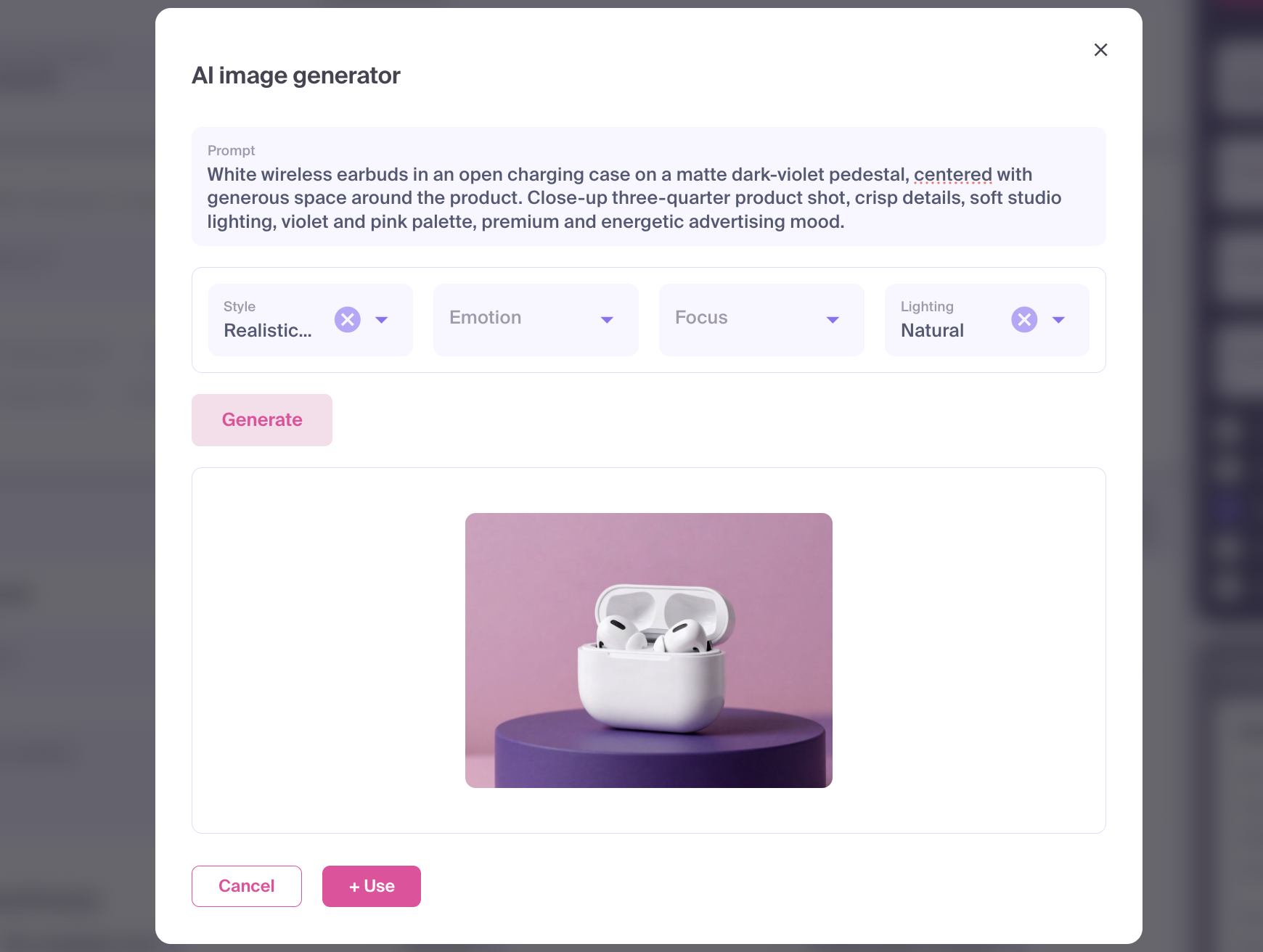
Each generation produces one preview. Generating again replaces the previous preview inside the generator.
Why a Detailed Prompt Matters
The generator uses your prompt and optional settings as its instructions. It does not automatically know:
- which product or object should be shown;
- what the advertisement is promoting;
- where the subject should appear;
- which colors match your campaign;
- whether you need a close-up, a wide scene, or space around the subject;
- what mood the image should communicate.
A short prompt leaves these decisions to the generator. A detailed prompt reduces ambiguity and gives you more control over the result.
IMPORTANT
Detailed does not mean unnecessarily long. A strong prompt is specific, consistent, and easy to visualize.
Compare a Vague and a Detailed Prompt
Vague prompt:
A summer sale banner.
This prompt does not identify the product, composition, colors, lighting, or desired visual treatment. The generator has to make most of those decisions itself.
More useful prompt:
White wireless earbuds in an open charging case on a matte dark-violet pedestal, centered with generous space around the product. Close-up three-quarter product shot, crisp details, soft studio lighting, violet and pink palette, premium and energetic advertising mood.
The second prompt tells the generator:
- What to show — white wireless earbuds and an open charging case.
- Where to place it — on a dark-violet pedestal.
- How to compose the image — centered, close-up, three-quarter view.
- How much surrounding space to leave — generous space around the product.
- How it should look — a crisp product advertising image.
- How it should be lit — soft studio lighting.
- Which colors to use — violet and pink.
- What mood to communicate — premium and energetic.
This example is 268 characters long and fits within the 500-character prompt limit.
Build Your Prompt Step by Step
Use this structure as a starting point:
main subject + scene + composition + visual treatment + lighting + colors and mood
1. Describe the Main Subject
Name the most important object or person first. Add details that affect its appearance.
Instead of:
A phone.
Write:
A slim black smartphone with a bright edge-to-edge display.
2. Add the Scene or Context
Explain where the subject is and what is happening. For example:
- on a clean studio pedestal;
- held by a smiling traveler at an airport;
- beside a tropical swimming pool;
- floating above an abstract violet background.
3. Define the Composition
Tell the generator how the subject should be framed. Useful descriptions include:
- centered composition;
- close-up product shot;
- three-quarter view;
- top-down view;
- wide scene;
- main subject in the foreground;
- generous space around the product.
Composition is especially important for an advertising image: an attractive scene may still be unsuitable if the product is too small or surrounded by distracting objects.
4. Describe the Visual Treatment
Be concrete about the desired appearance. For example:
- realistic product photography;
- modern digital illustration;
- minimal advertising composition;
- clean 3D render;
- cinematic travel photography.
Avoid relying only on vague words such as beautiful, nice, or perfect. They do not explain what the result should look like.
5. Add Lighting, Colors, and Mood
Finish with the atmosphere you want to create. For example:
- soft studio lighting, premium mood;
- warm sunset light, relaxed summer mood;
- violet and pink palette, energetic mood;
- dark background with a subtle neon glow.
The prompt can contain up to 500 characters. You do not need to use all of them: include only details that help define the intended image.
Use the Optional Settings
The prompt is the only required input. The additional settings provide extra guidance:
- Style controls the overall visual treatment.
- Emotion sets the mood the image should communicate.
- Focus influences the composition and prominence of the main subject.
- Lighting changes the atmosphere and illumination.
Use these settings to reinforce the prompt rather than contradict it. For example, avoid describing a dark dramatic scene in the prompt while selecting a cheerful emotion and bright lighting.
Available options may change. If you leave the optional settings empty, describe the desired visual treatment, mood, composition, and lighting directly in the prompt.
Prompt Checklist
Before clicking Generate, check whether your prompt answers these questions:
- Is the main subject clearly identified?
- Are its important visual details included?
- Is the scene or background described?
- Is the composition specified?
- Is the desired visual treatment clear?
- Are lighting, colors, and mood consistent?
- Are there any contradictory instructions?
- Is the prompt within the 500-character limit?
If several answers are missing, add more useful detail before generating the image.
Refine the Result
The generator may interpret the same prompt differently on each attempt. If the first result is unsuitable:
- Identify the main problem.
- Change one part of the prompt or one optional setting.
- Generate another version.
- Compare the results.
Changing one element at a time helps you understand which instruction influenced the image.
For example:
- If the product is too small, add
close-up product shot. - If the background is distracting, describe a simpler setting.
- If the image feels flat, specify the lighting and mood.
- If the colors do not match the campaign, name the desired palette.
Images with Text, Logos, or Exact Products
AI image generators may reproduce text, logos, packaging, and small product details inaccurately.
Keep important advertising copy in the creative's Title and Description fields. If an exact logo, product image, legal label, or brand asset must be shown, upload approved artwork instead of relying on AI generation.
Prompts That Are Blocked
The system checks the prompt before returning a generated image. If the prompt is blocked, no image preview appears and an error is shown below the Prompt field, such as:
The prompt contains a prohibited topic. Please change the prompt and try again.
To avoid a blocked prompt and a later moderation rejection, do not ask the generator to create content involving:
- sexual exploitation of minors or any sexualized underage content;
- explicit nudity, sexual acts, or strongly sexualized content;
- rape, sexual violence, incest, or bestiality;
- graphic violence, death, self-harm, threats of physical harm, or cruelty to animals;
- hateful, abusive, harassing, racially or ethnically offensive content;
- criminal or dangerous activity such as drug trafficking, fraud, hacking, malware, or pirated software;
- misleading content or material that violates copyright, trademark, privacy, publicity, or other third-party rights.
These are grouped examples based on the MyBid Uniform Advertising Specifications and General Policies, not a fixed list of blocked words. MyBid may update the prohibited-content categories, and the automatic filter may reject other unsafe or ambiguous prompts.
DO NOT TRY TO BYPASS THE FILTER
Do not disguise a prohibited request with misspellings, coded language, or euphemisms. Change the unsafe concept itself and create a compliant prompt instead.
If you believe a legitimate prompt was blocked by mistake, simplify the wording while keeping the intended safe meaning. Contact MyBid support if the problem continues.
Content and Moderation
AI-generated images follow the same campaign moderation process as manually uploaded images. Generation does not guarantee that the creative will be approved.
Use visuals that:
- match the advertised offer and landing page;
- avoid misleading claims or representations;
- comply with MyBid campaign requirements;
- use brands and other protected materials only when you have the right to use them.
The automatic prompt check and campaign moderation are separate controls. A prompt can pass the generator while the completed creative is later rejected during moderation.
Troubleshooting
The Generate Button Is Inactive
Make sure the prompt contains visible text, is no longer than 500 characters, and is not already being processed.
An Error Appears Below the Prompt
The prompt may contain an unsupported or prohibited topic. Review Prompts That Are Blocked, change the unsafe concept, and try again.
A Temporary Error or Limit Notification Appears
Wait a little and retry. If the error continues, contact your MyBid manager or support through live chat.
The Result Is Different from What You Expected
Make the main subject more specific and add composition, lighting, or color details. Change only one part of the prompt or one optional setting before generating the next variation.
The AI Image Generator Link Is Missing
The generator is available only for supported campaign setups and ad types. You can continue by uploading an image manually.
You Are Asked to Confirm Leaving the Generator
The current prompt, selected settings, and generated preview are not saved until you click Use. Select Stay to keep working or Yes, leave to discard the current progress.