
API Keys: Generation, TTL, and Security
API keys provide a secure method for your external tools, scripts, and third-party platforms to interact with MyBid API endpoints. This guide covers how to generate, manage, and secure your API keys to ensure seamless and safe integration.
Use Cases for API Keys
- Automated Reporting: Fetch real-time campaign data for custom dashboards or internal analysis.
- Campaign Management: Update or pause campaigns based on external triggers.
- Security Control: Implement key rotation and expiration (TTL) to minimize the risk of unauthorized access.
How to Generate an API Key
Follow these steps to create a new key in your MyBid account:
- Navigate to the API Keys section of your dashboard.
- Click the + Create API key button.

- Authentication: Enter your account password to verify your identity.
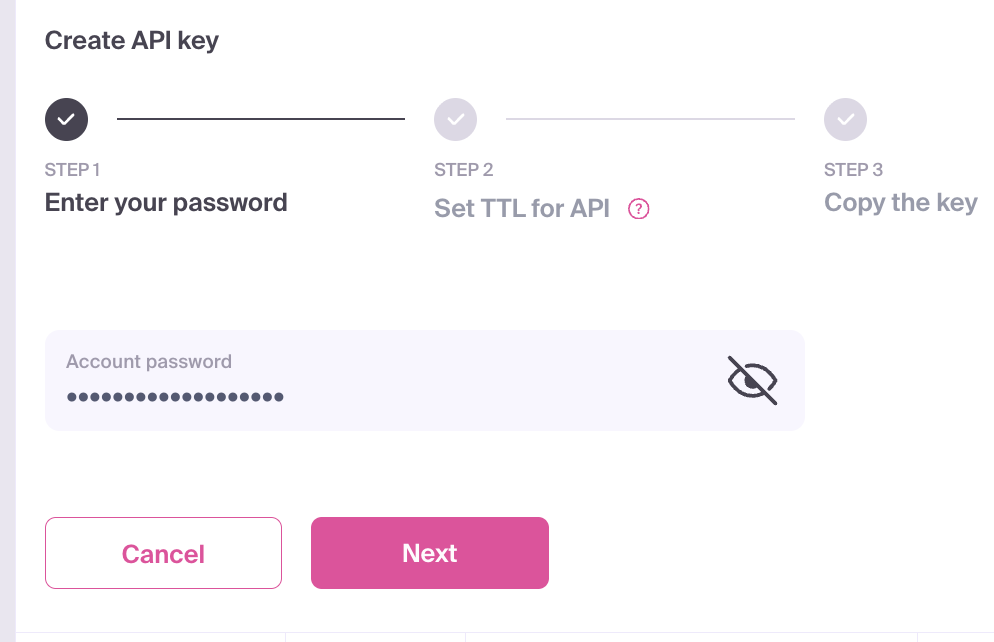
- Click Next.
- Configure TTL: Select the Key TTL (Time-To-Live), which defines how long the key remains active before expiring automatically.
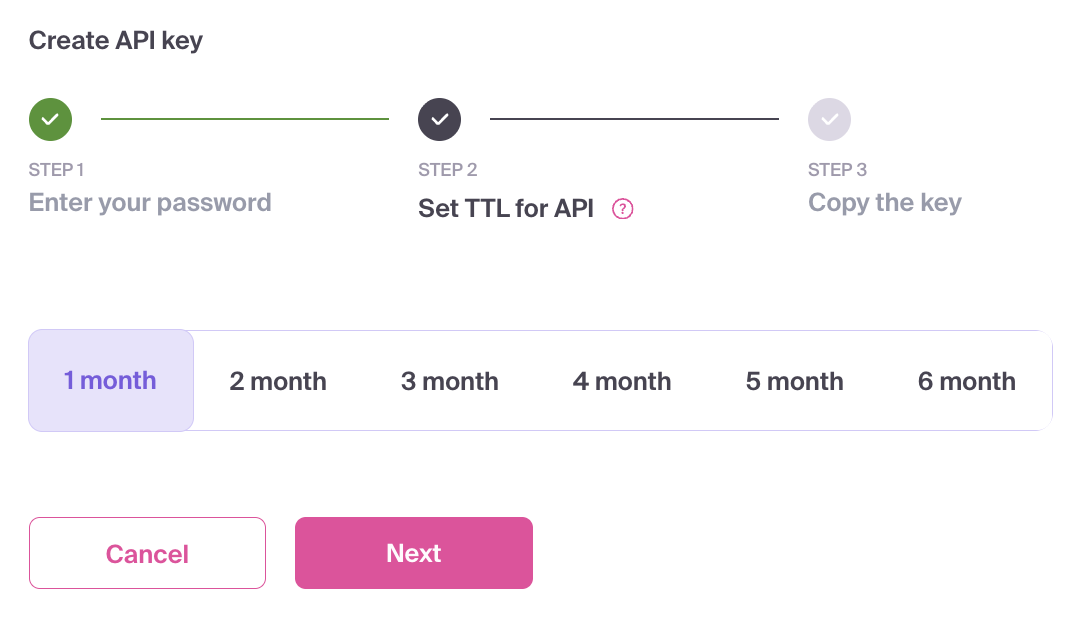
- Click Next.
- Save Your Key: Copy the generated API key immediately and store it in a secure password manager or vault.
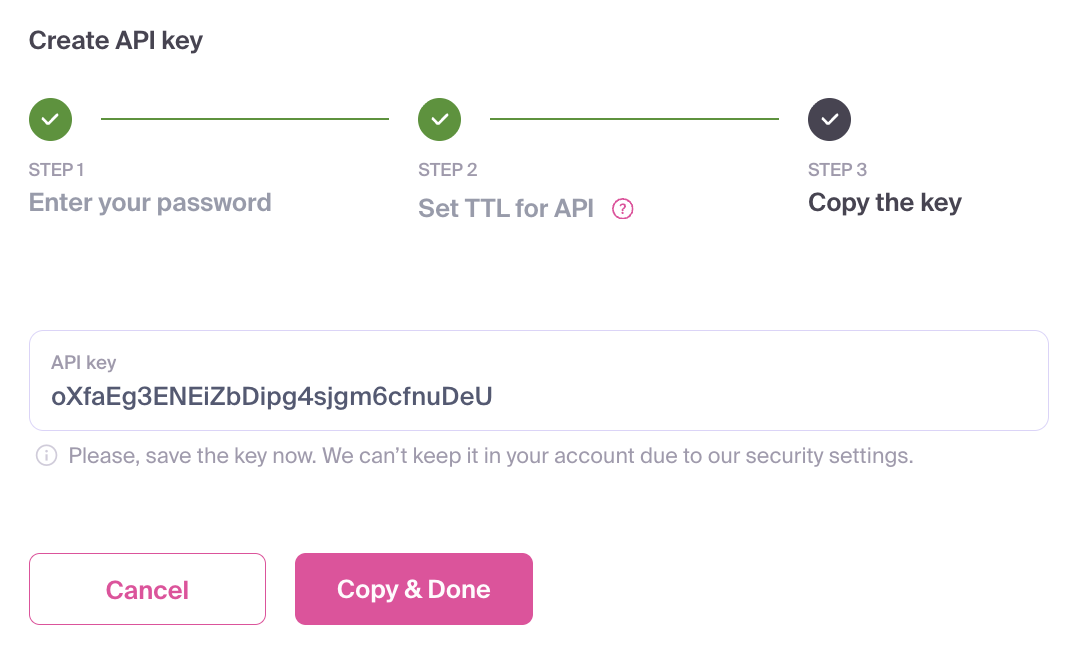
IMPORTANT
For security reasons, the API key value is only displayed once during the generation process. If you lose the key, you must delete it and create a new one.
- Integrate the key into your application headers as specified in our API documentation.
- Deactivation: If a key is compromised or no longer required, navigate to the API Keys table and click the Deactivate icon.
Security Best Practices
- Avoid Hardcoding: Never store API keys in plain text within your source code. Use environment variables or a dedicated secret management service.
- Principle of Least Privilege: Only create the number of keys absolutely necessary for your integrations.
- Regular Rotation: Set a Reasonable TTL and rotate your keys periodically to mitigate the impact of potential leaks.
- Audit Regularly: Periodically review your active keys and deactivate any that are no longer in use.
Troubleshooting
- Authentication Failed: If you receive a password error during Step 1, verify your login credentials and ensure your account has the necessary permissions.
- 401 Unauthorized Error: If your integration fails to authenticate, double-check that the key value is copied correctly and that the key has not expired (reached its TTL).
- Lost Key Value: As the value is only shown once, you cannot retrieve it later. To restore access, deactivate the lost key and generate a new one.